

How to update variables:
- Open your project in Designer.
- Find the Variables panel:
- Click the Variables icon (a circle with a dot inside) located near color or typography controls in the Style panel.
- Or press Shift + Cmd/Ctrl + M to open the Style Manager, then select Variables tab.
- Here you’ll see your color and typography variables grouped (like --Primary Color, --Heading Font Size).
- Click any variable to edit its value.
- Your site updates automatically everywhere that variable is used.
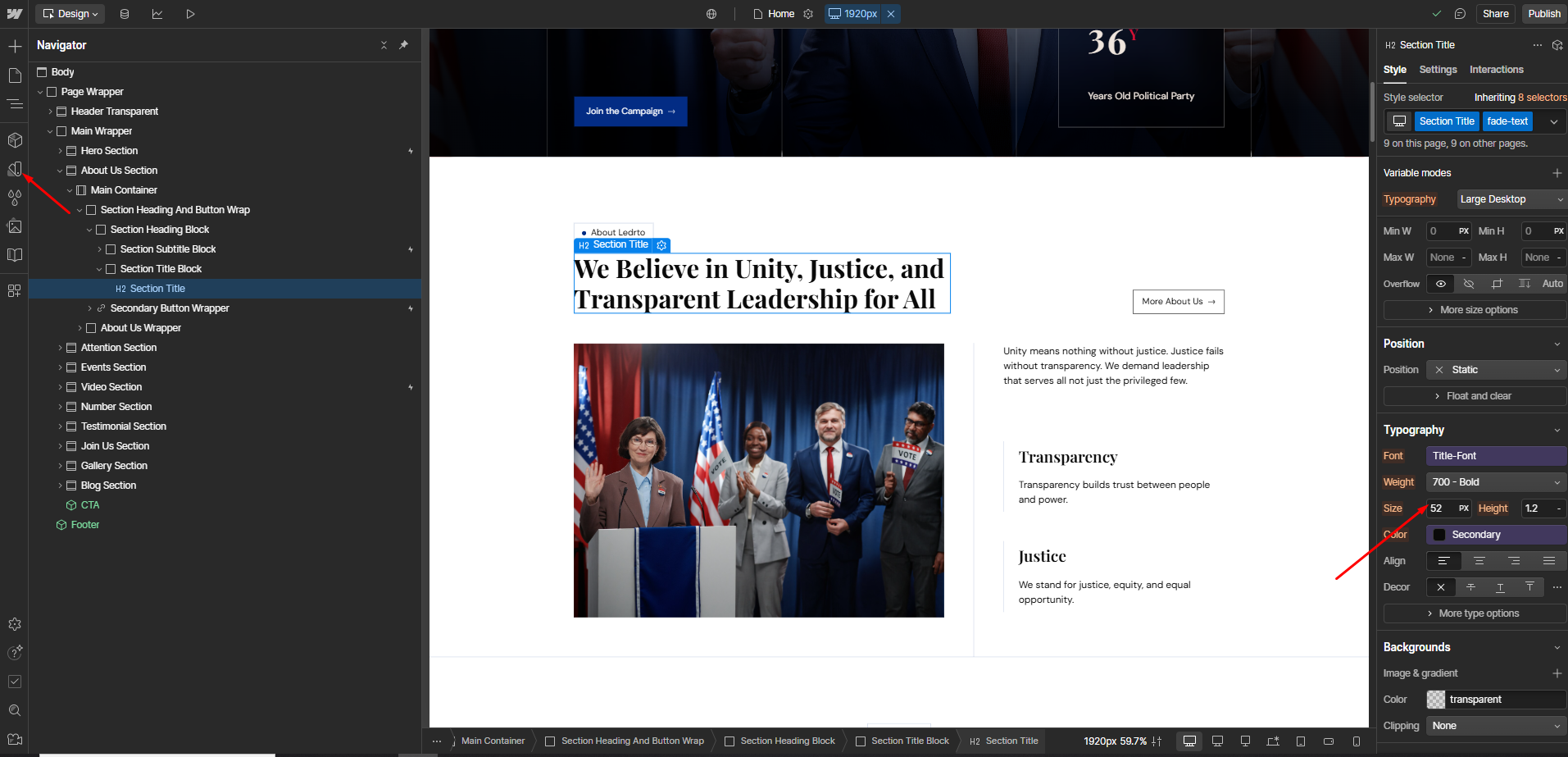
You can also use the Style panel to directly change colors and typography for individual elements, if you don’t want to use variables.
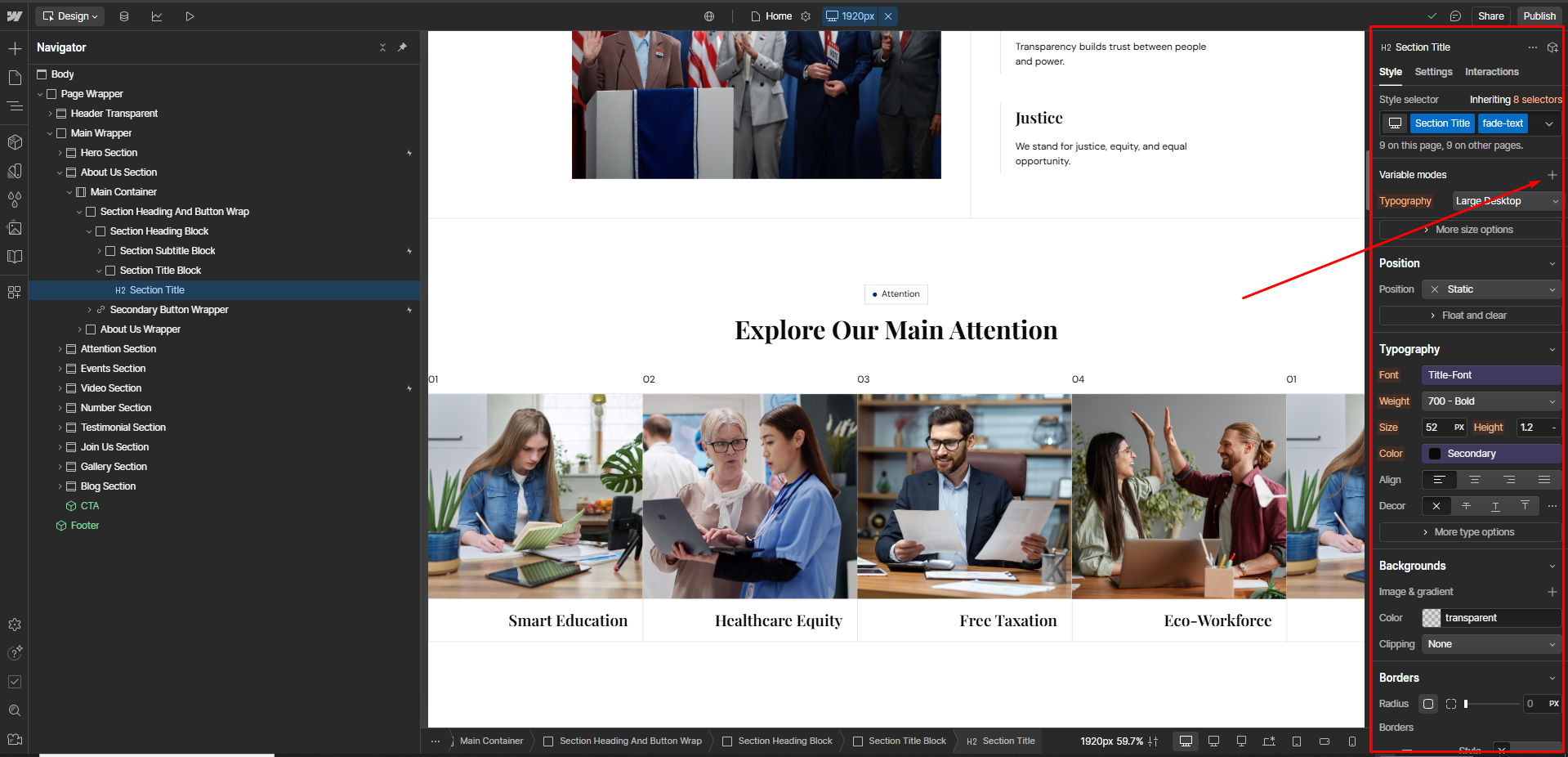
To change text:
- Click directly on any text in Designer and type your own content.
To change images:
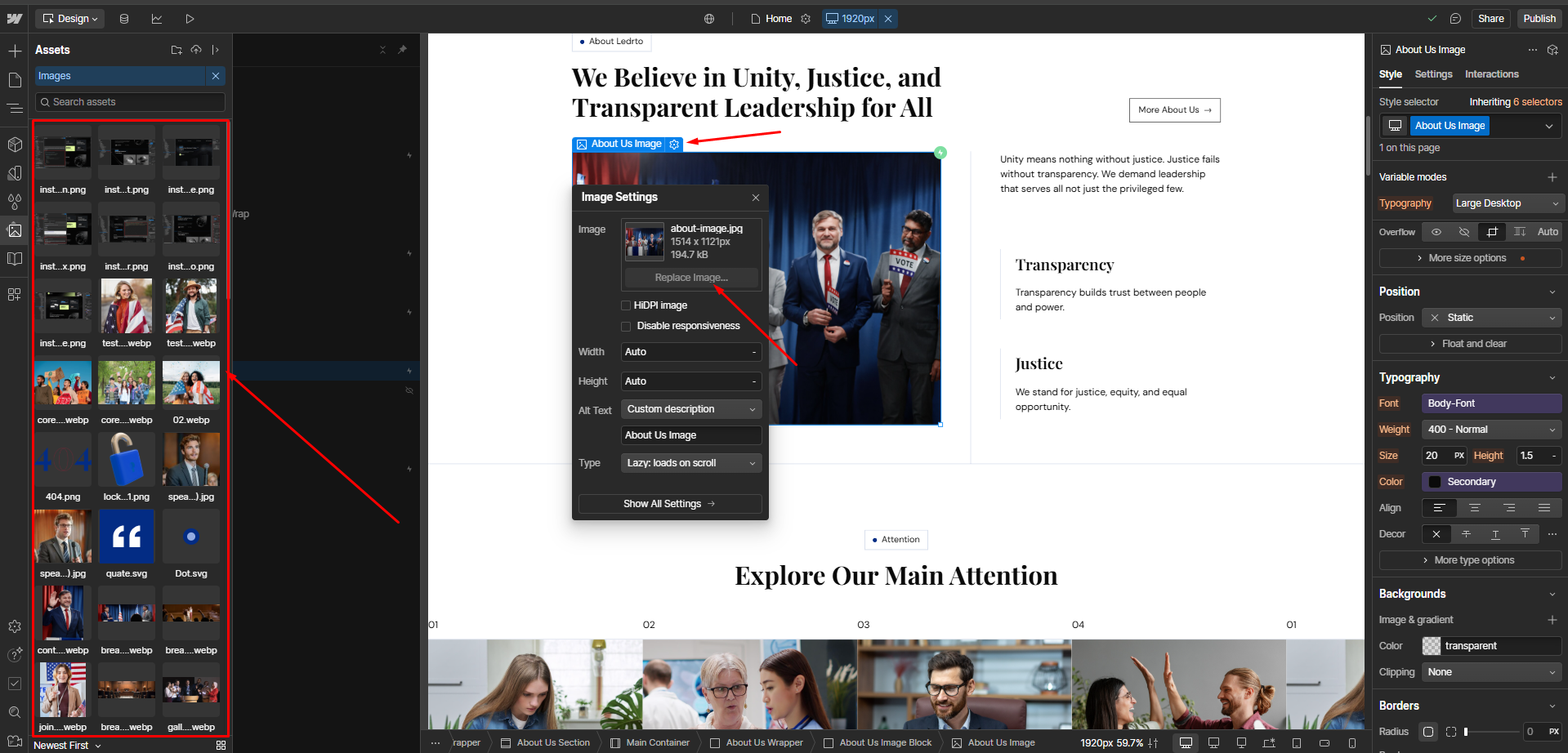
- Select the image.
- In the Settings panel (gear icon), click Replace Image.
- Upload your new image or pick one from Assets.
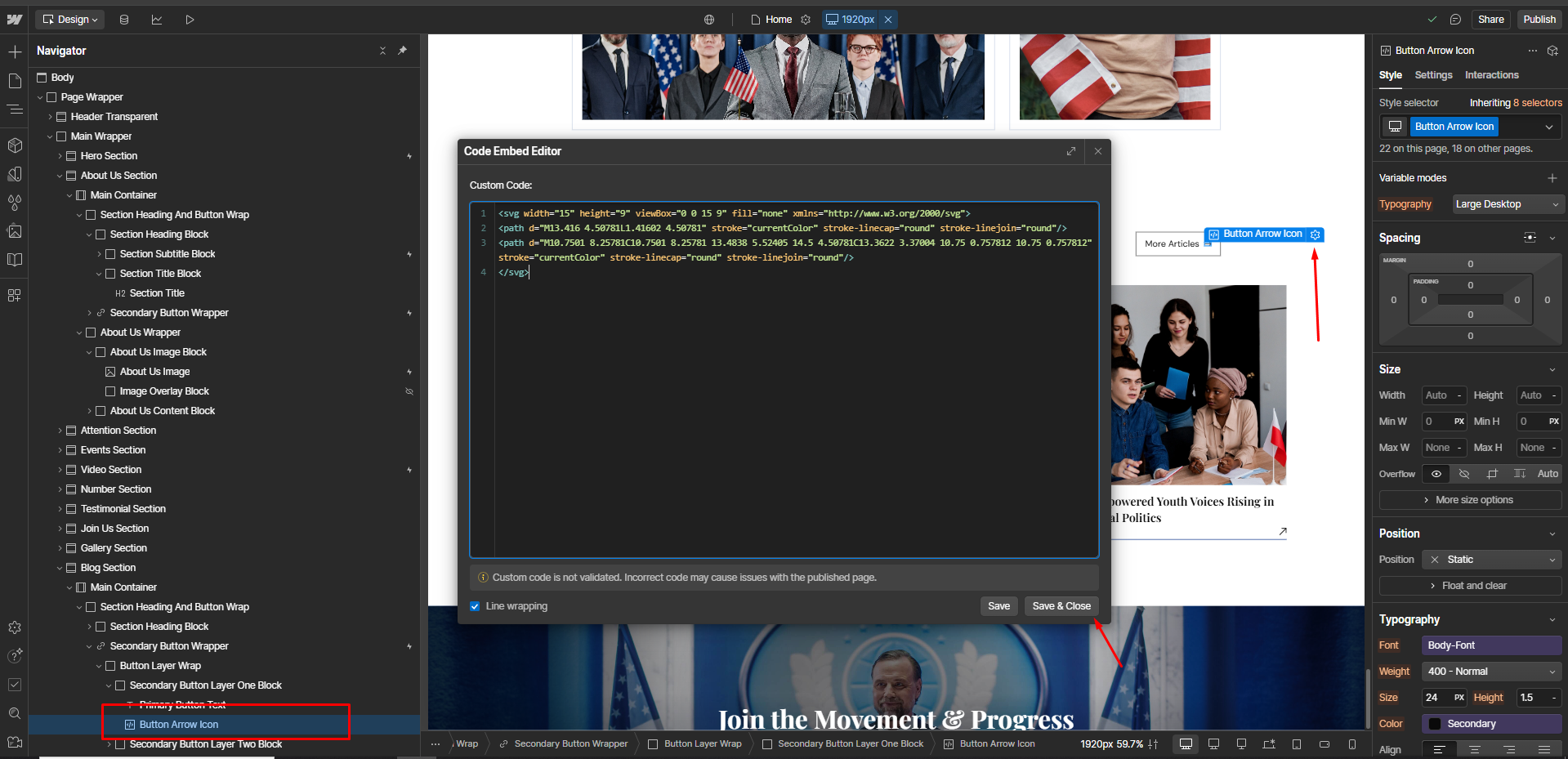
To replace an icon:
- Click the icon element → Edit Embed.
- Paste your new <svg>...</svg> code.
- Save, and the icon updates instantly.
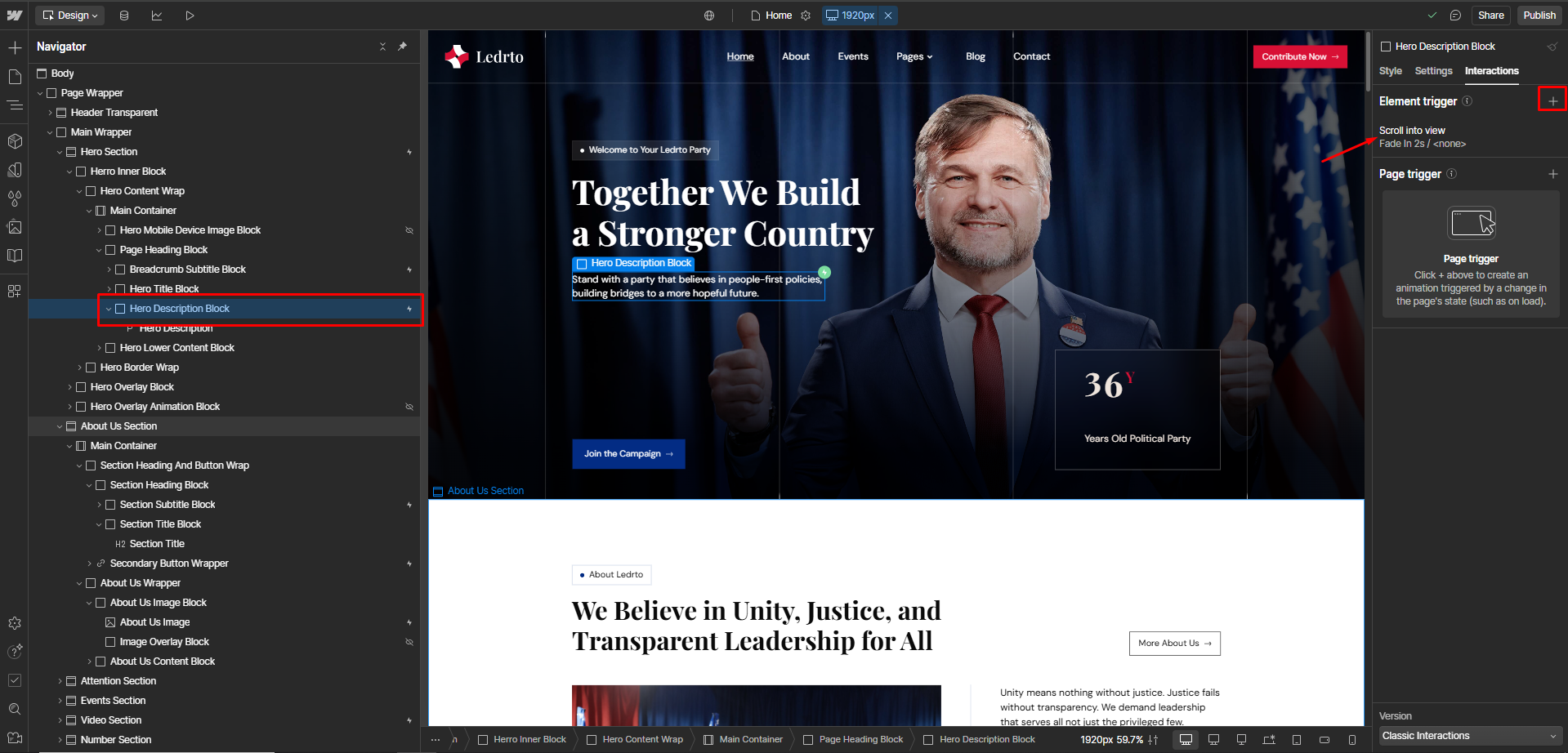
- Select an animated element.
- Open the Interactions panel (⚡ icon).
- Modify triggers, easing, duration, or effects.
- Preview using the eye icon.
- Open the Pages panel.
- Click the gear icon beside the page.
- Update:
- SEO Title
- Meta Description
- Open Graph Image
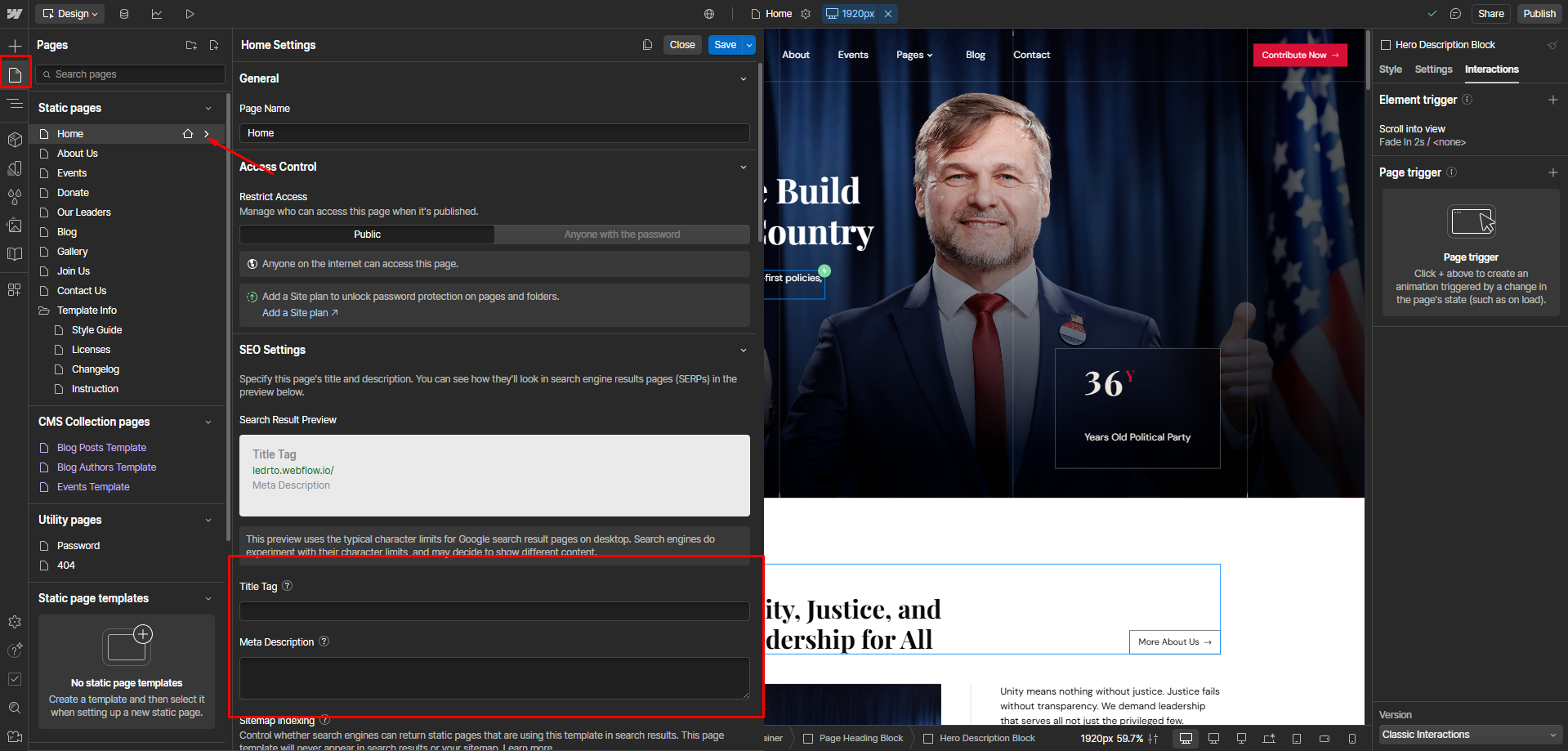
This helps your site rank well and look great when shared.
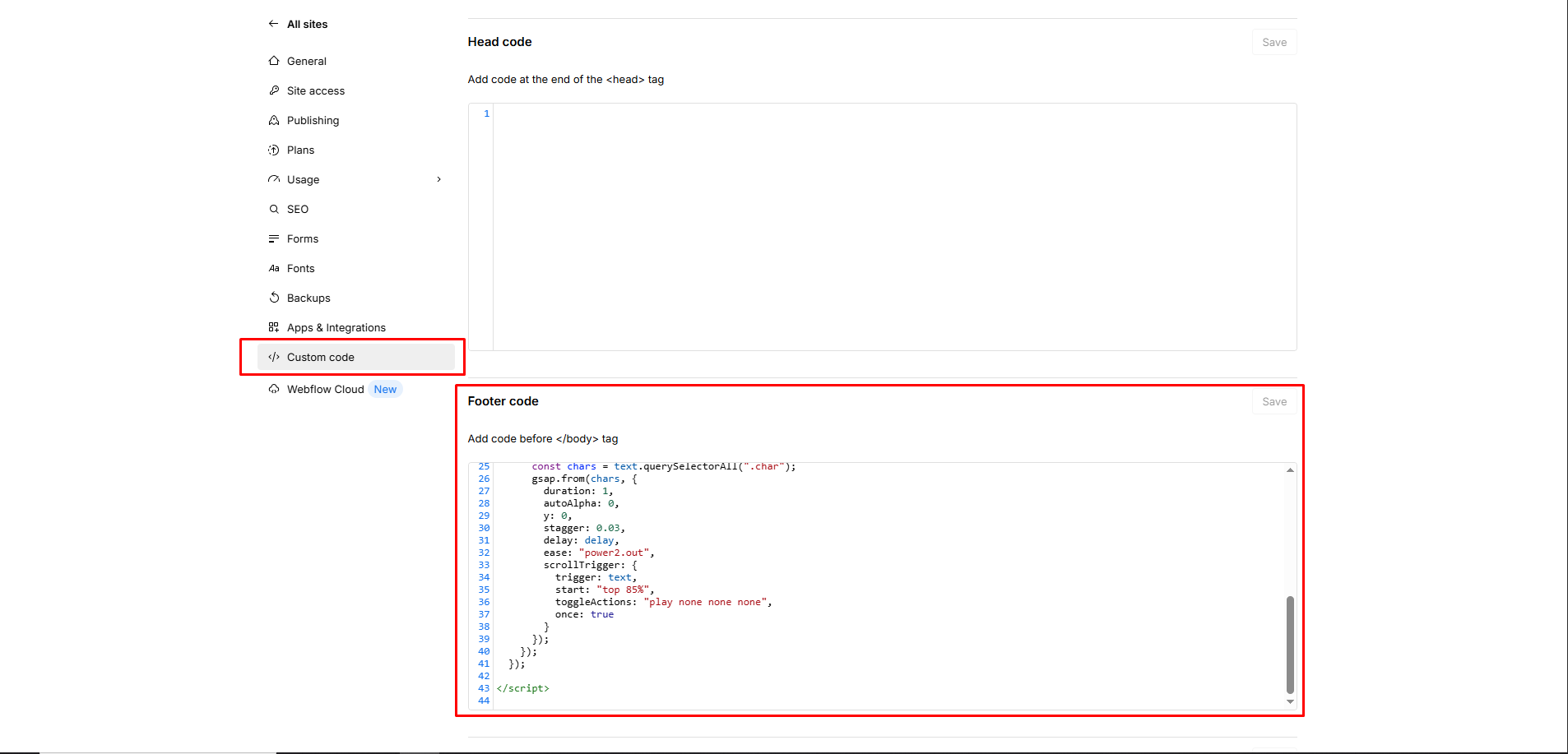
- Open Site Settings → Custom Code → before </body> tag.
- Paste the code bellow:
<script>
  document.addEventListener("DOMContentLoaded", function () {
    gsap.registerPlugin(ScrollTrigger);

    const fadeTexts = document.querySelectorAll(".fade-text");

    fadeTexts.forEach((text) => {
      const delay = parseFloat(text.dataset.delay) || 0;

      const words = text.textContent.trim().split(/\s+/);
      text.innerHTML = ""; // clear existing
      words.forEach(word => {
        const wordEl = document.createElement("span");
        wordEl.className = "word";
        word.split("").forEach(char => {
          const charEl = document.createElement("span");
          charEl.className = "char";
          charEl.textContent = char;
          wordEl.appendChild(charEl);
        });
        text.appendChild(wordEl);
        text.appendChild(document.createTextNode(" "));
      });

      const chars = text.querySelectorAll(".char");
      gsap.from(chars, {
        duration: 1,
        autoAlpha: 0,
        y: 0,
        stagger: 0.03,
        delay: delay,
        ease: "power2.out",
        scrollTrigger: {
          trigger: text,
          start: "top 85%",
          toggleActions: "play none none none",
          once: true
        }
      });
    });
  });

</script>
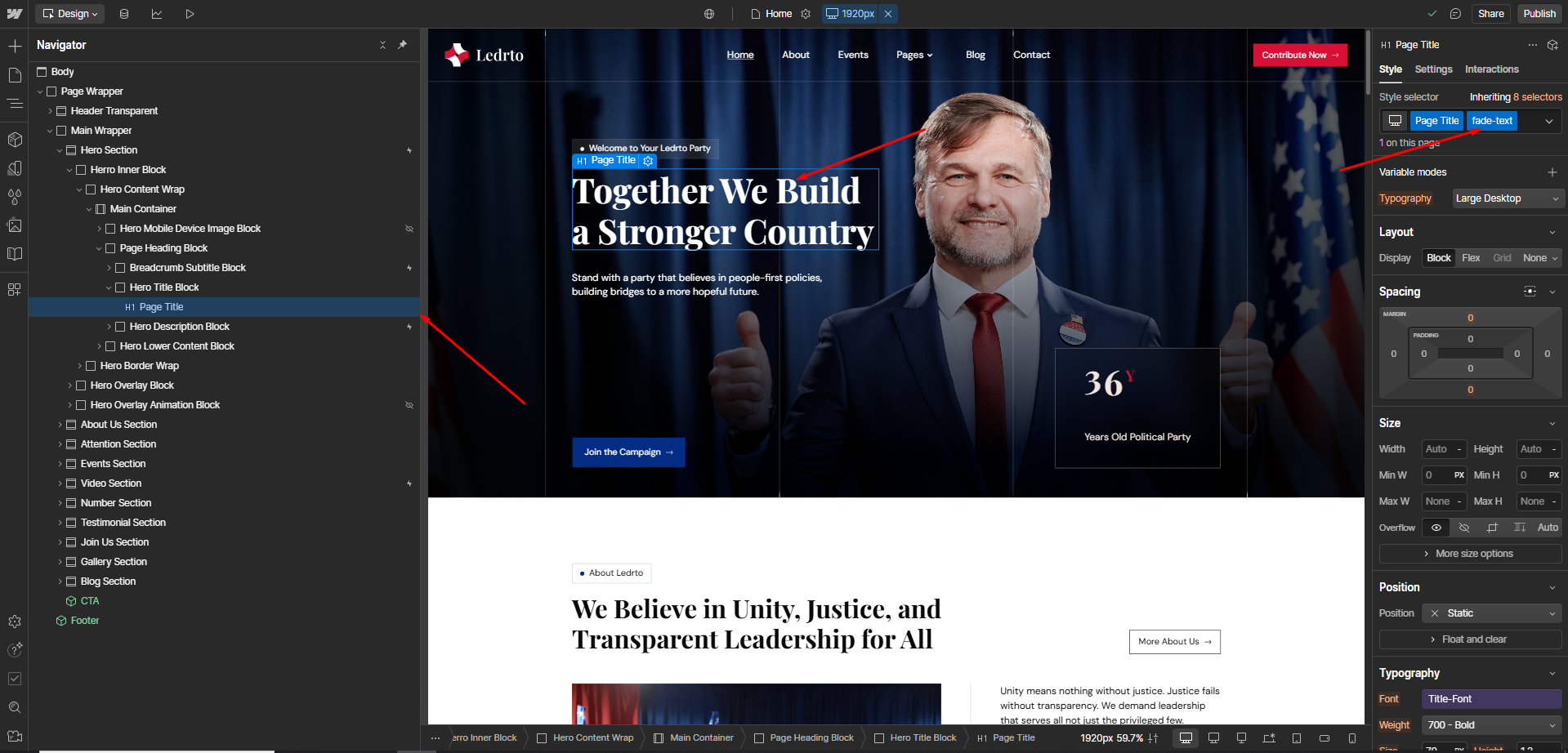
- Select any heading or text block that you want to animate.
- Add the class name: "fade-text" to enable the animation.
You can adjust duration, stagger, or start values to change timing or trigger point of the GSAP text animation from the JavaScript Code.